
LED display flickering is a common problem that can affect indoor LED video walls, outdoor advertising screens, rental stage displays, control room screens, and commercial digital signage. Sometimes the flickering appears as a slight brightness fluctuation. In other cases, the screen may show horizontal lines, flashing sections, intermittent blackouts, or unstable colors.
The cause is not always a defective LED module. Flickering can result from an unstable power supply, loose signal connections, incorrect controller settings, incompatible refresh configurations, electrical interference, or a problem with the display’s internal components.
Identifying the actual cause is the first step toward finding a reliable solution. Replacing modules without proper diagnosis can increase maintenance costs while leaving the underlying problem unresolved.
This guide explains the most common causes of LED display flickering, how to troubleshoot them, and what preventive measures can help keep an LED screen operating reliably.
1. What Causes an LED Display to Flicker?
An LED display may flicker because of electrical instability, signal transmission problems, incorrect configuration, hardware failure, or the interaction between the display and a camera.
The pattern of the flickering often provides useful clues. For example, an entire screen that flashes may indicate a shared power or signal problem, while a single cabinet that flickers may point to a local connection or component fault. These clues can help narrow down the possibilities, although they do not prove the cause by themselves.
Before making adjustments, observe when the problem occurs, which parts of the screen are affected, and whether the flickering changes with brightness, content, or camera settings.

2. Unstable Power Supply
An unstable power supply is one of the first things to investigate when an LED display flickers.
LED displays rely on power supplies to provide the electrical power required by LED modules and control components. If the supply voltage fluctuates, a power supply is overloaded, or a connection becomes unreliable, the screen may show brightness changes, flashing, intermittent black sections, or unexpected restarts.
Common signs
Power-related flickering may affect several cabinets at once, especially when they share the same power circuit or distribution path. The problem may become more noticeable when the screen displays bright content or operates at higher brightness.
Other warning signs include repeated shutdowns, unusual sounds from power components, overheating, or protective devices tripping.
How to solve it
First, determine whether the problem affects the entire display or only a particular section. Qualified technicians can then check the power distribution system, cable connections, circuit loading, and power supply performance against the manufacturer’s requirements.
Inspect accessible cables and connectors for damage, looseness, corrosion, or signs of overheating.
If a power supply is confirmed to be faulty, replace it with a compatible unit that meets the equipment specifications.
Do not open energized equipment, bypass electrical protection, or attempt internal electrical repairs without the appropriate training and isolation procedures.
3. Loose or Damaged Signal Cables
LED displays depend on reliable signal transmission between the video source, sending controller, processor, receiving cards, and display cabinets.
A loose, damaged, or incompatible signal cable can interrupt communication between these components. The result may be flickering, flashing lines, missing image sections, intermittent black screens, or cabinets that display content incorrectly.
Common signs
Signal-related problems often affect a particular cabinet, row, or section rather than the entire screen. Flickering may occur intermittently when a connector is loose or a cable has been damaged.
The affected area may also stop displaying content temporarily and then recover.
How to solve it
Check the signal path and compare the affected section with the system wiring diagram. Inspect connectors and cables for physical damage, poor connections, and signs of wear.
Where appropriate, a qualified technician can test the system with a known-good compatible cable. If the problem disappears after the cable is replaced, the original cable or connection may have been responsible.
For large LED walls, clearly label signal cables and document the cabinet layout. This makes it easier to identify the affected signal path and reduces troubleshooting time.
Avoid repeatedly reconnecting cables while equipment is energized if the manufacturer’s procedures require shutdown or isolation first.
4. Incorrect Refresh Rate or Display Configuration
An LED display’s refresh behavior affects how images are updated and how stable they appear under different viewing and recording conditions.
Incorrect controller settings, unsuitable configuration files, incompatible hardware parameters, or poorly matched video output settings may result in visible flickering, abnormal image behavior, or poor camera performance.
The issue can be particularly noticeable on rental stage LED displays, broadcast screens, and displays used for live events.
Common signs
The screen may appear normal to someone watching it directly but show horizontal bands or flicker when recorded by a camera.
In other cases, the display may show abnormal lines, inconsistent image behavior, or problems after a controller or configuration file has been changed.
How to solve it
Confirm that the controller, receiving cards, LED modules, and processor are configured for the installed hardware.
Check the manufacturer’s recommended refresh settings and verify that the video source uses a compatible resolution and frame rate.
If the display is being filmed, test it with the actual cameras and recording settings. Camera frame rate and shutter speed can interact with the display’s scanning and refresh behavior, producing bands or flicker in recorded footage even when the screen appears stable to the naked eye.
Do not assume that selecting the highest available refresh-rate setting will automatically solve the problem. The complete display system must support the configuration being used.
For advanced configuration changes, consult the equipment manufacturer or a qualified LED display technician.
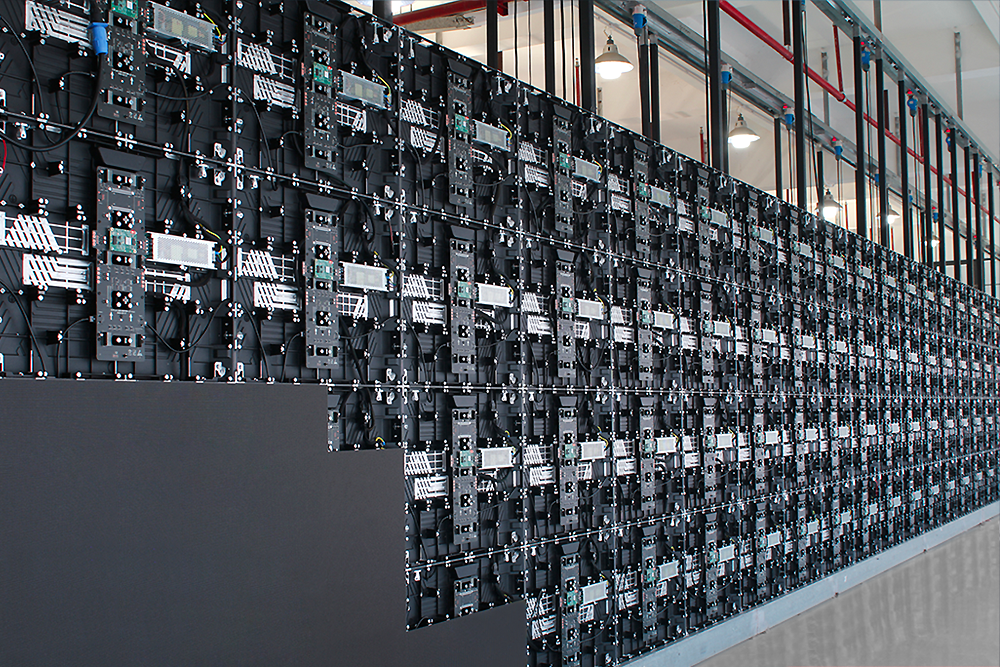
5. Faulty LED Modules or Internal Components
Sometimes the problem is caused by a defective LED module, driver IC, receiving card, internal connector, or another electronic component.
LED modules contain multiple electronic elements, and a fault in one part may affect a limited area of the display. Damage from impact, moisture, overheating, or repeated use can also contribute to component failure.
Common signs
If flickering consistently occurs in the same small area, even after external cables and configuration settings have been checked, a local hardware fault may be involved.
The affected area may also show abnormal colors, missing pixels, brightness differences, or a section that intermittently turns black.
How to solve it
Identify the exact location of the problem and record whether it remains in the same cabinet or module.
A qualified technician can follow the manufacturer’s diagnostic procedure to determine whether the fault is related to the module, receiving card, internal connection, or another component.
Replace defective components with compatible parts and follow the required power isolation procedures before servicing the cabinet.
Avoid replacing multiple modules without confirming the fault. Systematic diagnosis helps prevent unnecessary parts costs and reduces the risk of introducing additional problems.
6. Electrical Interference and Grounding Problems
Electrical interference can affect LED display systems, particularly in installations where large displays operate near lighting equipment, motors, high-power electrical devices, or other sources of electrical noise.
Incorrect grounding, unsuitable cable routing, or problems with the electrical installation may contribute to unstable operation.
Common signs
The flickering may occur when nearby equipment switches on or changes operating conditions. It may also appear intermittently or affect several connected devices.
However, similar symptoms can result from power supply or signal problems, so interference should not be assumed without testing.
How to solve it
Have a qualified technician inspect the grounding arrangement, electrical distribution, cable routing, and relevant connections.
Keep signal and power cables routed according to the equipment manufacturer’s recommendations. Use suitable cable types and approved installation practices.
Do not remove protective grounding or disconnect safety devices in an attempt to eliminate flickering. These measures can create serious electrical hazards.
If the problem started after new lighting, sound, or electrical equipment was installed, include that change in the investigation.

7. Overheating and Poor Ventilation
Excessive heat can affect the performance and reliability of LED modules, power supplies, driver circuits, and other electronic components.
Outdoor displays may experience additional thermal stress from direct sunlight and high ambient temperatures. Indoor screens can also overheat when installed in enclosed spaces with inadequate airflow.
Common signs
Flickering may become more frequent after the display has been operating for a long time. The screen may also show brightness reduction, thermal warnings, unexpected shutdowns, or other unstable behavior.
These symptoms are not exclusive to overheating, so temperature should be checked alongside other possible causes.
How to solve it
Check whether ventilation openings are blocked and whether the installation provides the clearances required by the manufacturer.
Inspect fans or other cooling components if the display uses them. For fanless displays, ensure that the cabinet’s intended heat-dissipation paths are not obstructed.
Adjust brightness to suit the environment instead of running the screen at maximum brightness unnecessarily.
If the display repeatedly overheats, shut down the affected equipment when required and arrange a professional inspection. Do not continue operating a system that shows signs of unsafe overheating.
8. Incorrect Brightness or Grayscale Settings
Some flickering complaints are related to brightness behavior rather than a complete hardware failure.
At low brightness levels, certain display configurations may reveal unstable-looking gradients, uneven brightness, or visible fluctuations. Incorrect grayscale settings, calibration issues, or incompatible control parameters can also affect how smoothly the display renders dark content.
Common signs
The problem may be most visible when displaying dark backgrounds, low-gray test patterns, or content with subtle brightness transitions.
It may become less noticeable when brightness is increased, although that does not necessarily mean the underlying problem has been resolved.
How to solve it
Check the display’s brightness, grayscale, calibration, and control settings against the manufacturer’s recommended configuration.
Use appropriate test patterns to compare different sections of the screen. If the problem began after a settings change, restore the last confirmed working configuration where safe and appropriate.
For professional installations, calibration should be performed using compatible equipment and documented procedures.
Do not use excessive brightness as a permanent workaround. The goal is to identify the cause while maintaining appropriate image quality, power consumption, and operating temperature.

9. Why Does an LED Display Flicker on Camera?
An LED screen may look stable to the human eye but appear to flicker when photographed or recorded. This is a common concern for concerts, conferences, livestreams, television production, and other events involving cameras.
The effect occurs because cameras capture images at specific frame rates and exposure times, while an LED display refreshes and scans its pixels according to its own operating characteristics.
If these processes do not interact well, the recorded image may show dark horizontal bands, brightness pulsing, or uneven areas.
How to reduce camera flicker
Start by testing the display with the actual camera, frame rate, and shutter settings that will be used during the event.
The LED technician and camera operator should work together to adjust compatible settings and review the recorded footage. Display processing, refresh behavior, grayscale performance, and camera exposure may all need to be considered.
Check the display’s technical specifications before selecting it for broadcast or close-up filming. A refresh-rate number alone does not guarantee flicker-free camera performance.
If the display is being used for a major event, conduct the test during setup rather than waiting until the performance begins.
10. A Step-by-Step Troubleshooting Guide
When an LED display begins flickering, a systematic process is more effective than changing several settings at once.
Step 1: Identify the affected area.
Determine whether the entire display, one cabinet, one row, or a small module is affected. Record whether the problem is continuous or intermittent.
Step 2: Check for safety risks.
If there is a burning smell, visible damage, suspected water ingress, abnormal heat, or repeated electrical protection trips, stop using the affected equipment and follow the appropriate isolation procedure. Arrange qualified inspection before restarting it.
Step 3: Review recent changes.
Consider whether the problem started after transportation, maintenance, a controller update, a brightness adjustment, a cable replacement, or the installation of other electrical equipment.
Step 4: Inspect external connections.
Check accessible power and signal cables for damage and poor connections. Follow the manufacturer’s procedures before disconnecting or reconnecting equipment.
Step 5: Review configuration settings.
Confirm the screen mapping, controller configuration, source resolution, refresh settings, and other relevant parameters.
Step 6: Test the system methodically.
Use suitable test patterns and, where appropriate, a known-good compatible cable or component. Change one variable at a time so that the effect of each test can be identified.
Step 7: Escalate unresolved faults.
If the problem persists, arrange diagnosis by a qualified technician or the equipment manufacturer. Internal electrical faults and complex controller issues should not be addressed through guesswork.

11. How to Prevent LED Display Flickering
Preventive maintenance can reduce the likelihood of flickering and make faults easier to diagnose.
Inspect the display regularly
Check for damaged cables, loose connectors, abnormal image sections, dust accumulation, blocked ventilation, and visible cabinet damage.
For outdoor displays, inspect seals, cable entries, and weather protection, especially after heavy rain or severe weather.
Maintain stable power and suitable operating conditions
Ensure that the electrical installation meets the equipment’s requirements. Avoid overloading circuits and investigate recurring power problems promptly.
Operate the screen within the manufacturer’s specified temperature and environmental limits.
Keep configuration records
Save the confirmed working controller settings, cabinet mapping, wiring diagrams, and relevant calibration information.
Document any changes made during maintenance so technicians can identify what has changed if a fault appears later.
Use compatible replacement parts
Modules, power supplies, receiving cards, and other components must be compatible with the display model and configuration.
Using unsuitable replacement parts may create additional faults or make the system more difficult to maintain.
Prepare for important events
For rental stage displays, exhibitions, and live productions, complete a full-screen test before the event. Test the actual content and cameras where applicable, and keep appropriate spare parts available.
Early testing gives technicians time to correct problems without disrupting the event.
12. When Should You Contact a Professional?
Some problems can be traced to external connections or incorrect settings, but others require specialized diagnostic equipment and technical experience.
Contact a qualified technician if flickering continues after basic checks, if an entire screen repeatedly shuts down, if the display shows abnormal heat, or if there are signs of water ingress or electrical damage.
Professional diagnosis is also recommended when multiple cabinets fail simultaneously, a controller repeatedly loses communication, or the display behaves unpredictably after component replacement.
Do not open energized cabinets, bypass protective devices, or attempt repairs beyond your training.
For commercial advertising screens and mission-critical displays, a planned maintenance arrangement may help reduce downtime and ensure that repairs are completed using compatible parts and approved procedures.
Заключение
LED display flickering can be caused by unstable power, loose signal connections, incorrect refresh settings, defective modules, electrical interference, overheating, or camera-related effects. The most reliable solution depends on identifying the cause rather than replacing components or changing settings at random.
Start by checking the pattern of the flickering, the area affected, and any recent changes to the system. Then inspect external connections, review the controller configuration, and test the display methodically. Electrical faults, internal repairs, and safety-related problems should be handled by qualified professionals.
Preventive maintenance, suitable operating conditions, compatible components, and documented configuration settings can help reduce recurring problems.
When selecting an LED display, consider not only brightness and resolution but also power stability, refresh performance, thermal design, environmental protection, and ease of maintenance.
LEDCOMS provides LED display information and solutions for professional applications, including outdoor LED displays, high-definition LED displays, flexible LED modules, and customized display designs. Visit ЛЕДКОМС to explore display options and discuss the requirements of your project.
Understanding the causes of flickering and following a structured troubleshooting process can help protect your equipment, reduce downtime, and maintain consistent display performance.


